> ## Documentation Index
> Fetch the complete documentation index at: https://wpay-feat-edp-guide.mintlify.site/llms.txt
> Use this file to discover all available pages before exploring further.
# Google Pay on web without Embed
It is possible to use Google Pay on the web without our SDK. To learn how to integrate
Google Pay we recommend following Google's [tutorial][tutorial].
The steps below will highlight any differences and specifics for our API.
## About this integration
Even without Embed, there is only minimal configuration required to get set up to process Google Pay.
There is no need to sign up for a Google Developer account with this integration.
## Enable Google Pay
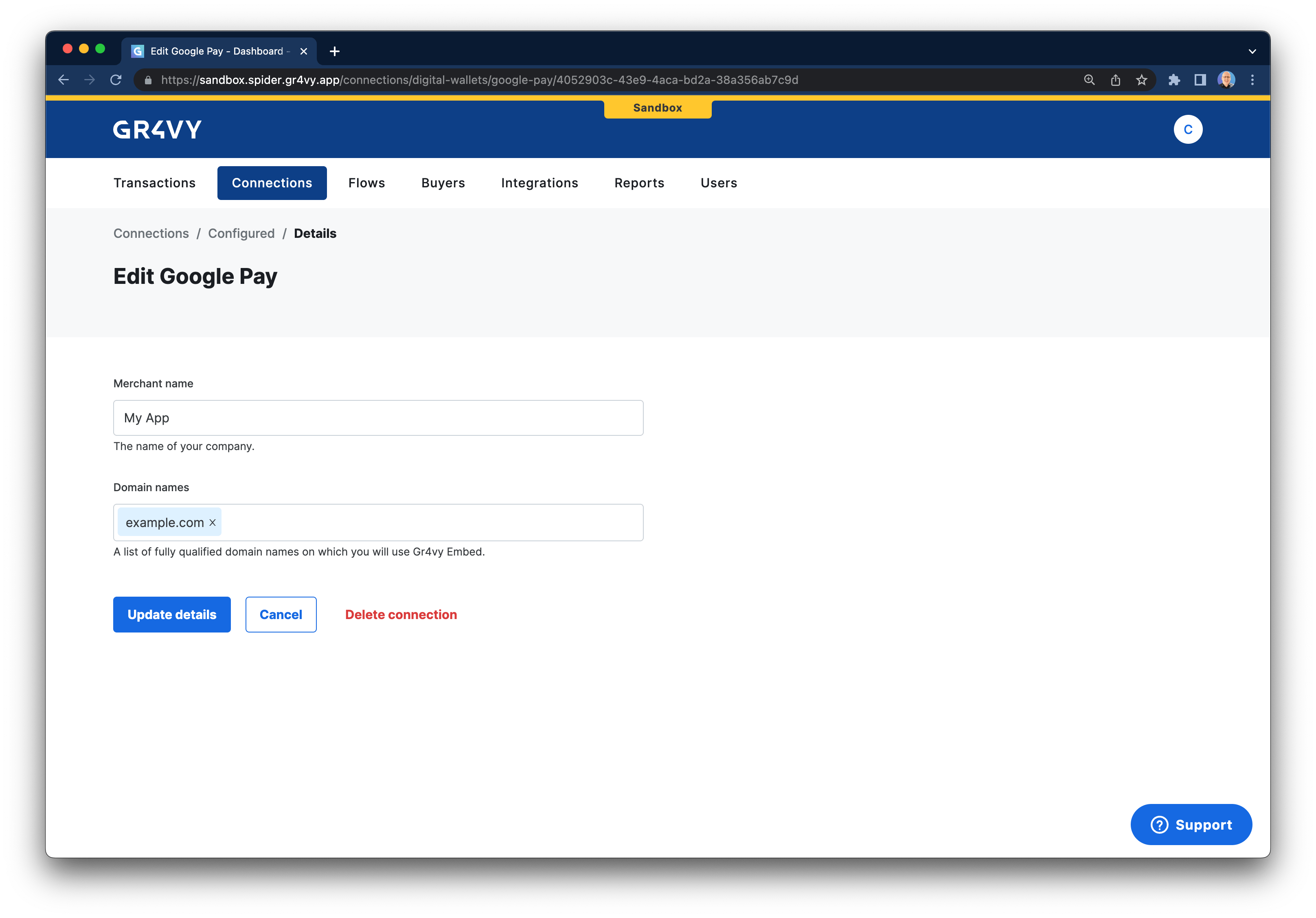
To enable Google Pay, head over to your dashboard and then go to
**Connections** -> **Catalog** -> **Google Pay**.
Next, fill in your merchant name and the domain name(s) where you want to
use Google Pay.
## Integrate Google Pay
The following steps highlight the integration points with our system using
Google's [tutorial][tutorial] for Google Pay.
### Set gateway and merchant ID
In step 2 of [Google's tutorial][tutorial] you are instructed to request a payment token for your provider.
In our case, the value for `gateway` needs to be set to `gr4vy`, and the value of `gatewayMerchantId` needs
to be set to `app.gr4vy.sandbox.[gr4vy_id].[merchant_account_id]` for your sandbox environment, and
`app.gr4vy.[gr4vy_id].[merchant_account_id]` in production.
```js
const tokenizationSpecification = {
type: "PAYMENT_GATEWAY",
parameters: {
gateway: "example",
gatewayMerchantId: "app.gr4vy.sandbox.wpay.merchant1",
},
};
```
### Create a transaction
In step 11 of Google's tutorial, within the `onPaymentAuthorized` function
you will have a `paymentData` that needs to be sent to the gateway. You can send
this object to our `POST /transactions` endpoint either directly or via your server.
```json
curl -X POST http://api.sandbox.example.gr4vy.app/transactions \
-H "Authorization: Bearer eyJhbGciOiJIUzI1NiIsInR5cCI6IkpXVCJ9.eyJzdWIi..." \
-H "Content-Type: application/json" \
-d "{
"amount": 1299,
"currency": "AUD",
"country": "AU",
"payment_method": {
"method": "googlepay",
"token": [paymentToken],
"redirect_url": "https://example.com/callback"
}
}"
```
We strongly recommend always providing a `redirect_url`, just in case any connection
is configured to use 3-D Secure.
This URL will be appended with both a transaction ID
and status (e.g. `https://example.com/callback?gr4vy_transaction_id=123
&gr4vy_transaction_status=capture_succeeded`) after 3-D Secure has been completed.
## Test Google Pay
To test Google Pay visit the site that has your integration loaded on it. Please follow the Google Pay documentation with further guides on how
to add [test cards](https://developers.google.com/pay/api/android/guides/resources/test-card-suite) for use in
a sandbox environment.
[tutorial]: https://developers.google.com/pay/api/web/guides/tutorial