

Install a server-side SDK
Use the package manager in your preferred programming language to install our server-side SDK. Token generation can only be done server side and we do not recommend doing this client side as it will expose your API key to your customers.Initialize the SDK client
Next, initialize the SDK with the ID of your instance and the private key.The Gr4vy ID is the unique identifier for your instance. Together with the environment
(sandbox or production) it is used to connect to the right APIs.The possible values for your ID are one of
wpay, wpay1, wpay2, or wpay3. We will inform you
in which instance your account has been set up.private_key.pem that is kept in the same folder next to the code. You could
store this key in an environment variable or a secure vault.
Generate a token
The final step is to create a new token for frontend authentication. The SDK comes with a helper function for exactly that purpose. It requires an amount and currency for the transaction to be created and additionally accepts either the ID of a buyer or your external identifier for a buyer to link the transaction to.Checkout sessions
An optional ID for a checkout session can be used to help identify multiple transaction attempts. This is useful to identify if one or more failed/declined transactions eventually result in a successful transaction.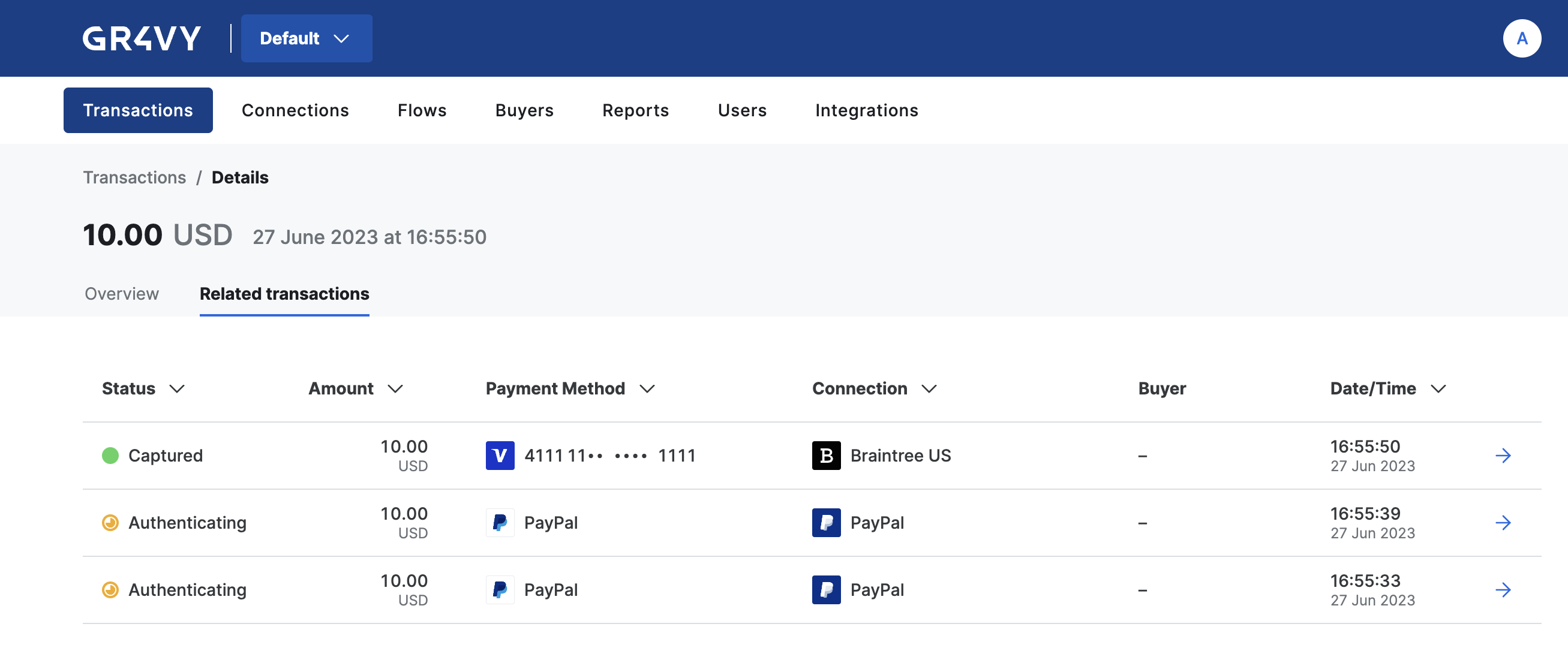
cart_items and metadata.
This removes the need to pin them or pass as a parameter to Embed.
Loading token in Android
The token needs to be shared with your Android application over your own API. We recommend you create a token per checkout and only use a token for a short amount of time.Summary
In this step you:- Created a signed JWT token using a server-side SDK.
- Shared the JWT with your Android application